Import Contracts from GitHub
Stagenets can automatically import, compile, and version the smart contracts in a GitHub repository.
- Connect to a GitHub repository
- Import and compile its smart contracts
- Automatically create a dedicated Contract Workspace for each one
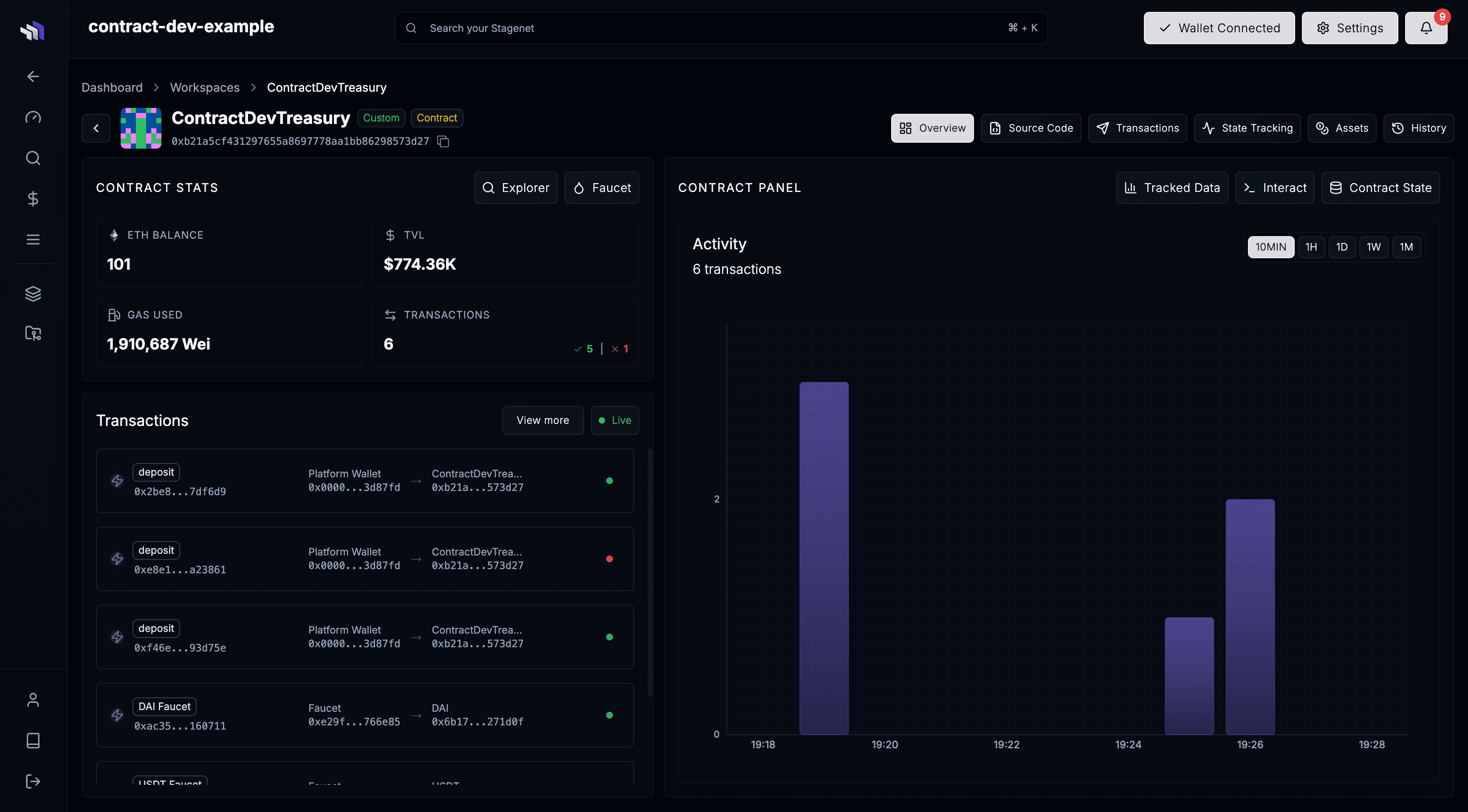
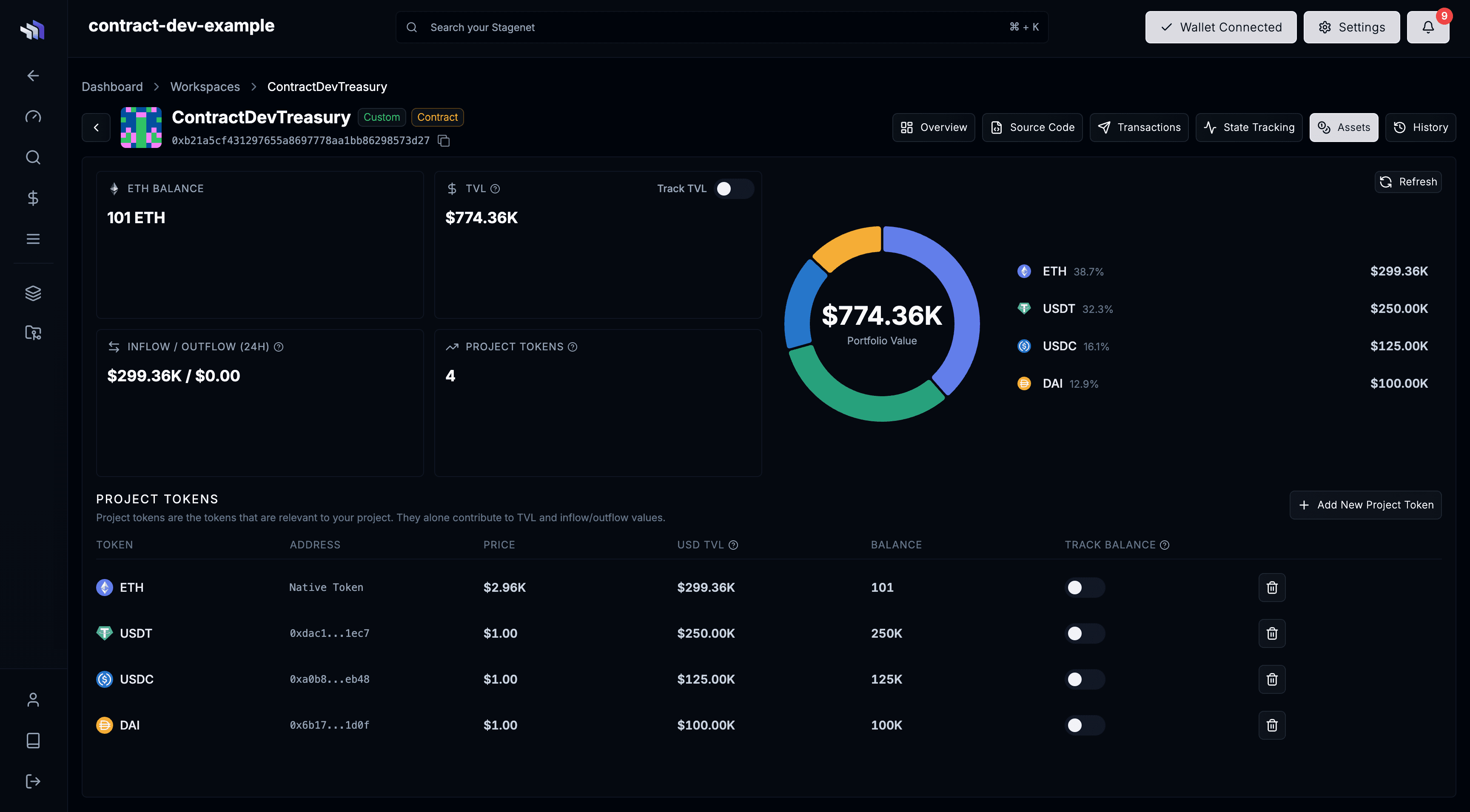
Each Workspace provides a scoped environment for analysing and managing a contract as you build. They surface activity, state, balances, TVL, and history — and includes tools to track and graph contract data over time.
This guide walks you through connecting a repository to your Stagenet, importing its contracts, and enabling CI/CD.
Install the contract.dev GitHub app
Start by installing the contract.dev GitHub app, which allows your Stagenet to access your repositories.
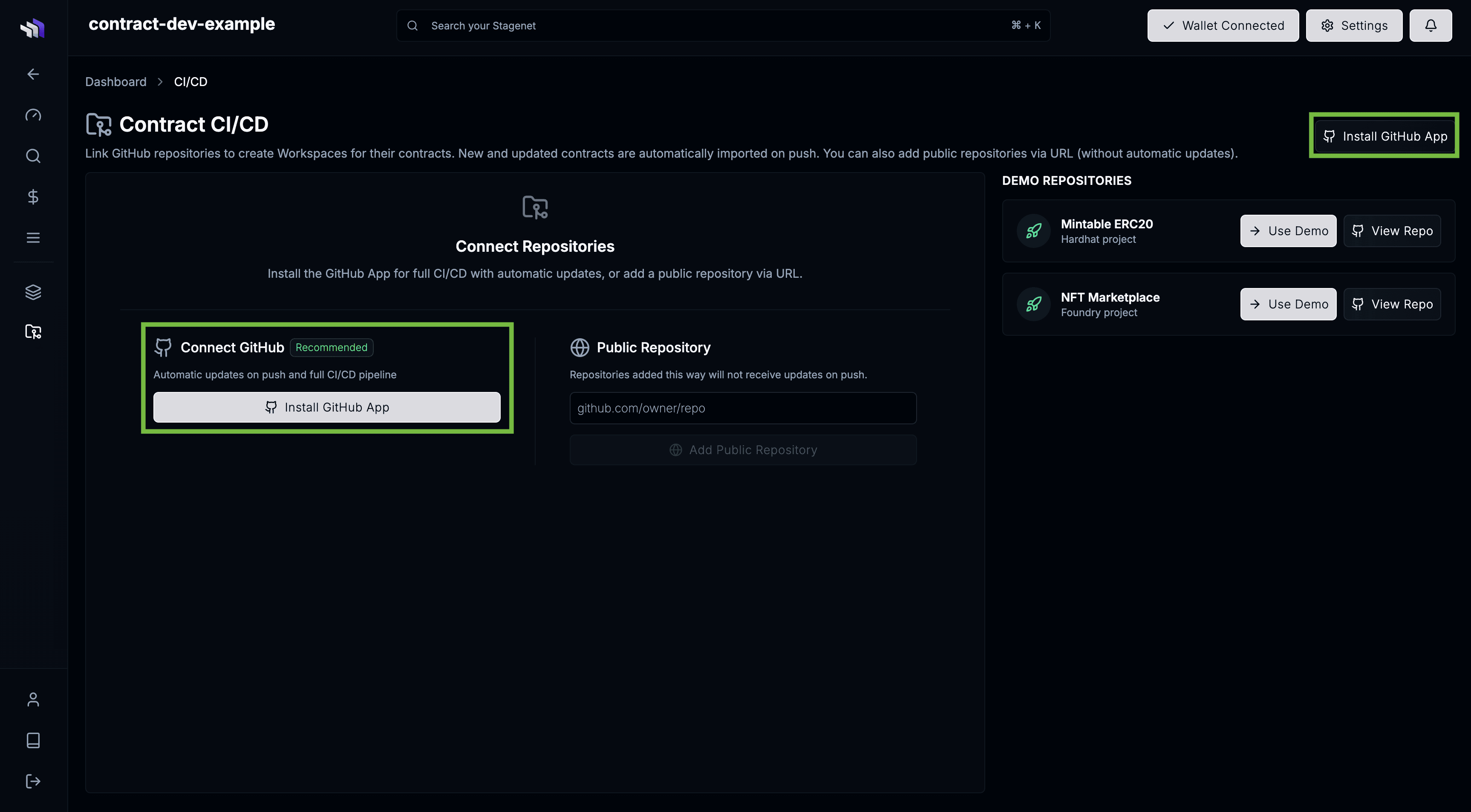
Open the CI/CD dashboard from the sidebar, then click one of the Install GitHub App buttons.
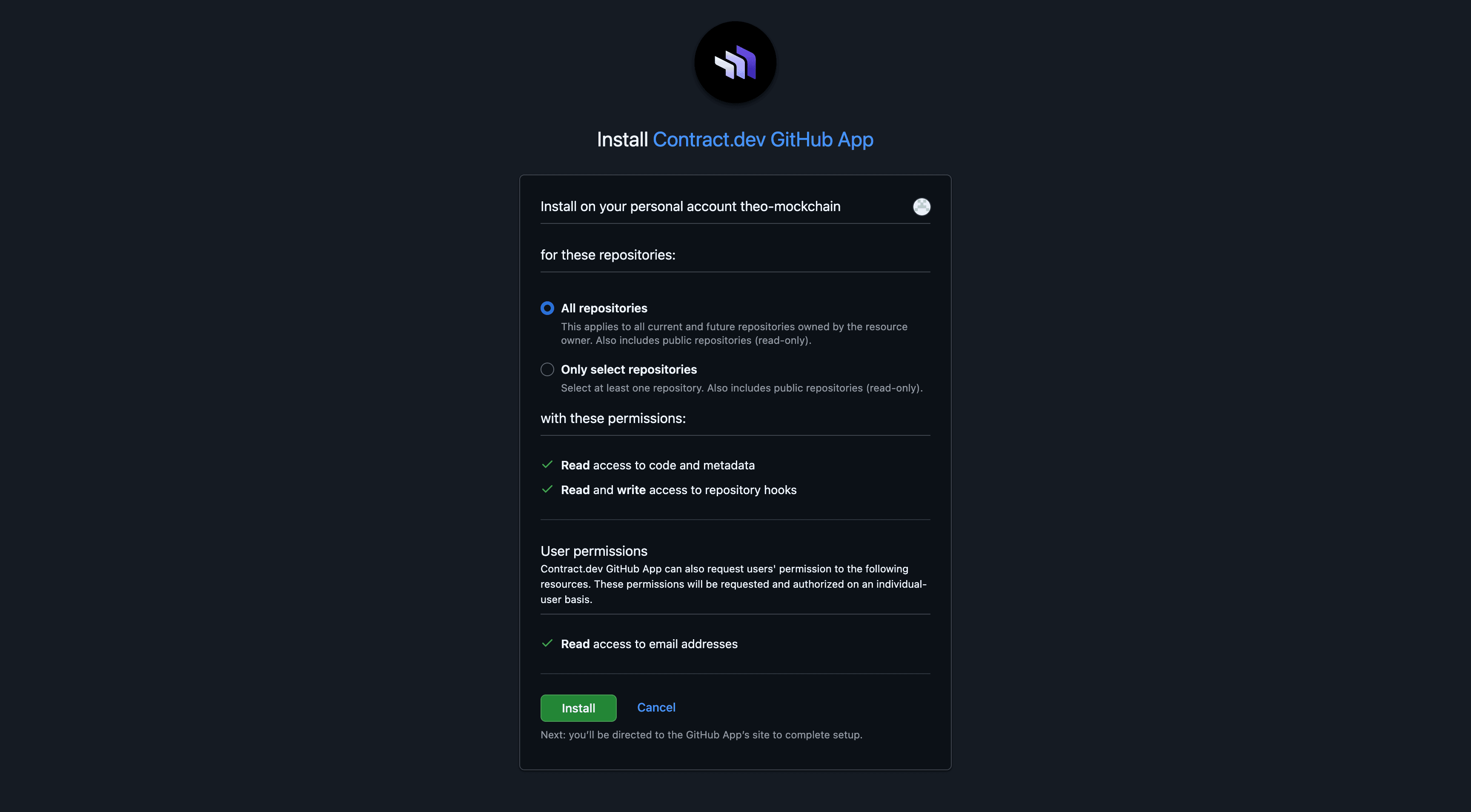
You’ll be taken to GitHub to install the app and grant repository access. Make sure to approve the repository that contains the contracts you want to import.
Connect a repository
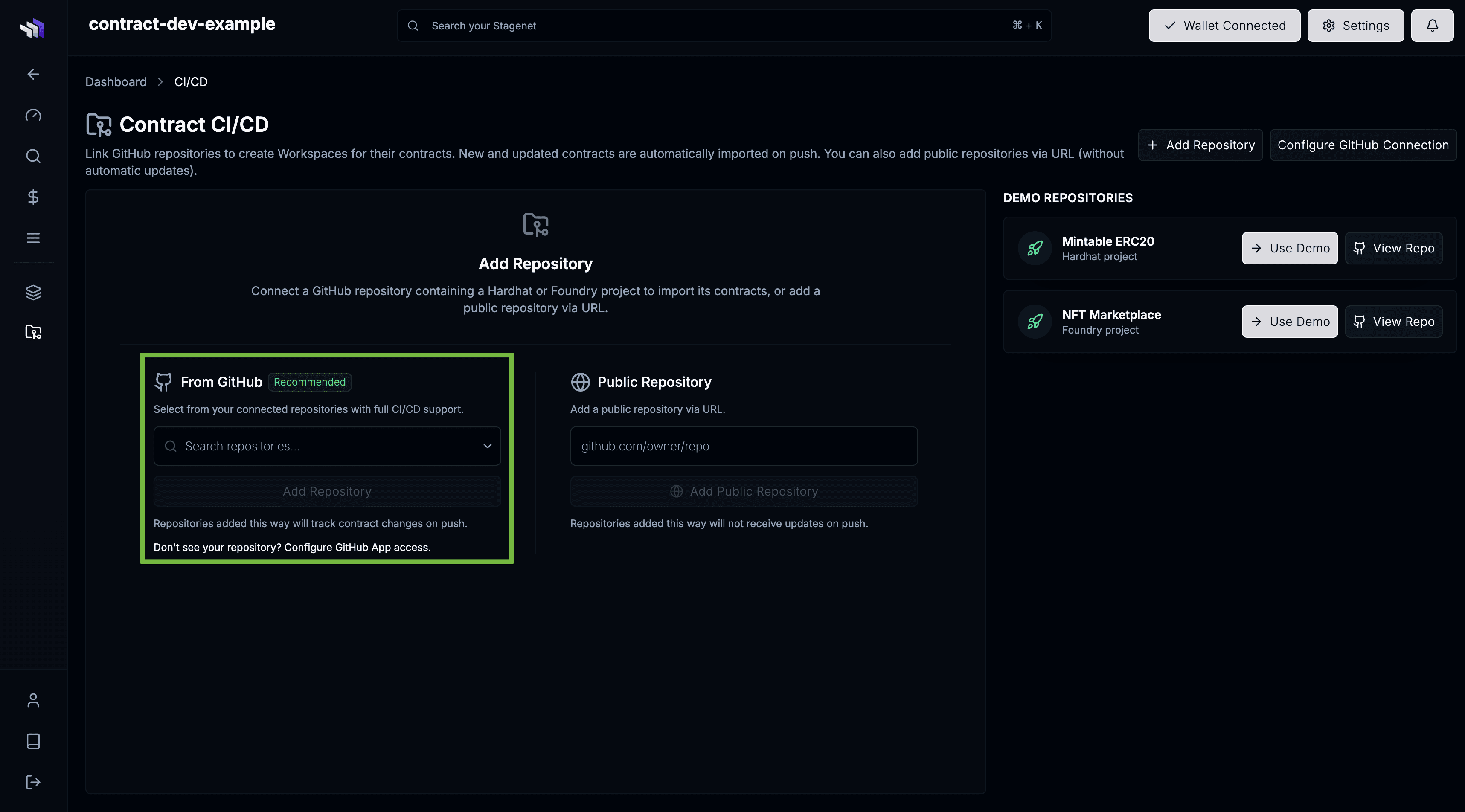
On the CI/CD page, select the repository you want to import from and click Add Repository.
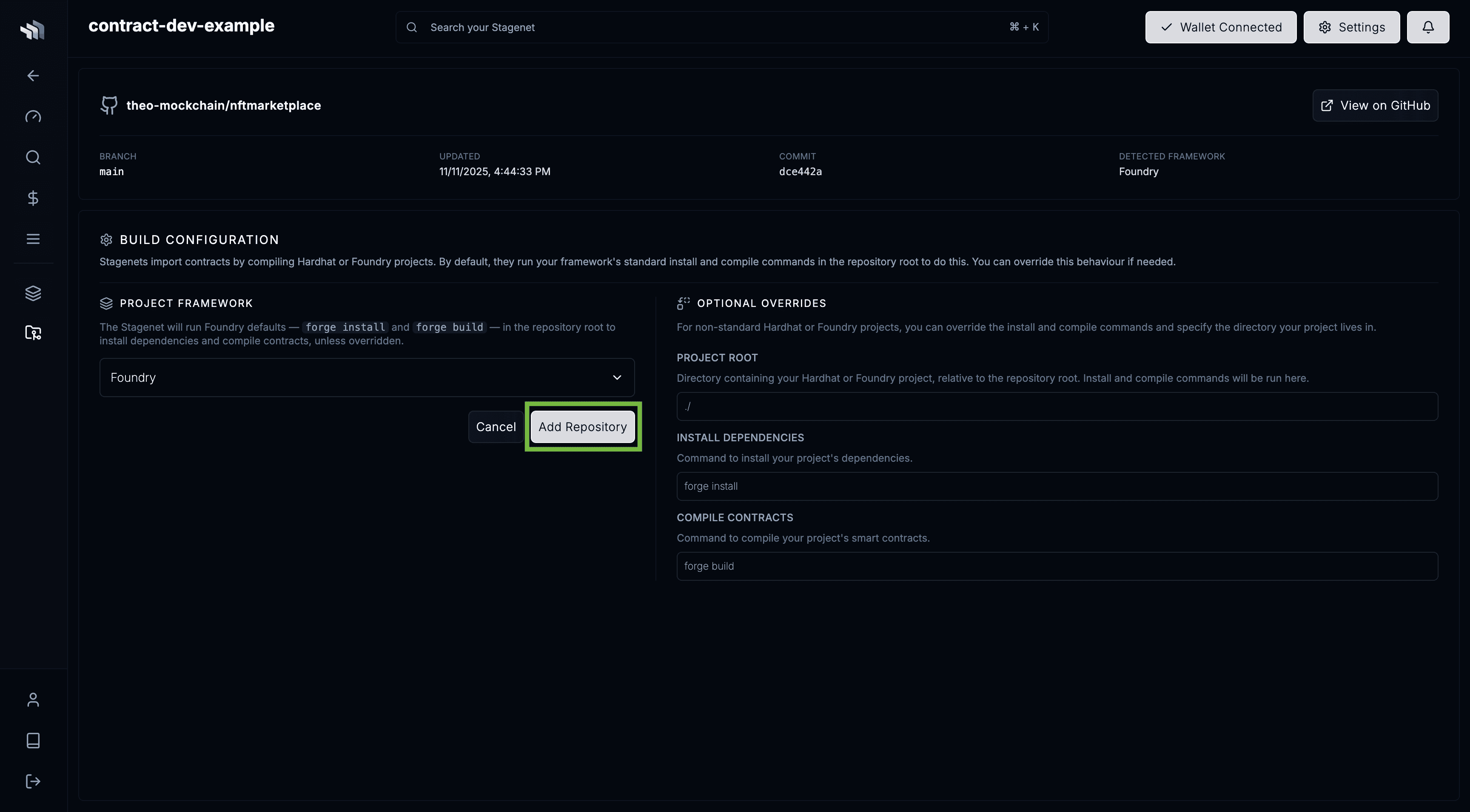
You’ll be taken to the repo’s Build Configuration screen.
The Stagenet compiles your contracts during import, and this page defines how that build runs.
Foundry and Hardhat projects work out of the box (e.g. npm install and npx hardhat compile or forge install and forge build).
If your project has a custom setup, configure your build steps in the Build Configuration.
Click Add Repository to start the import.
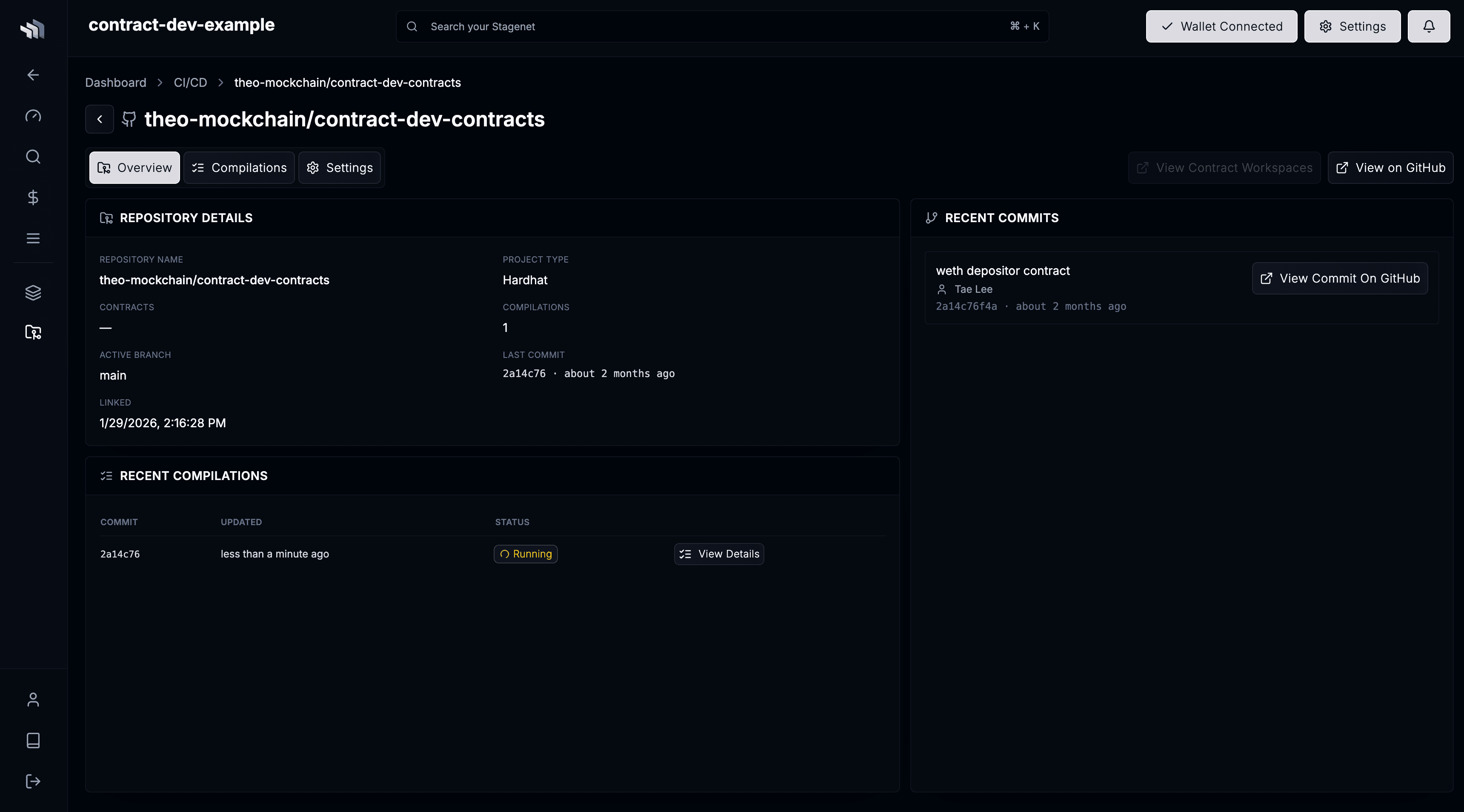
You will then be taken to your repo’s dashboard, where you’ll see the initial compilation running.
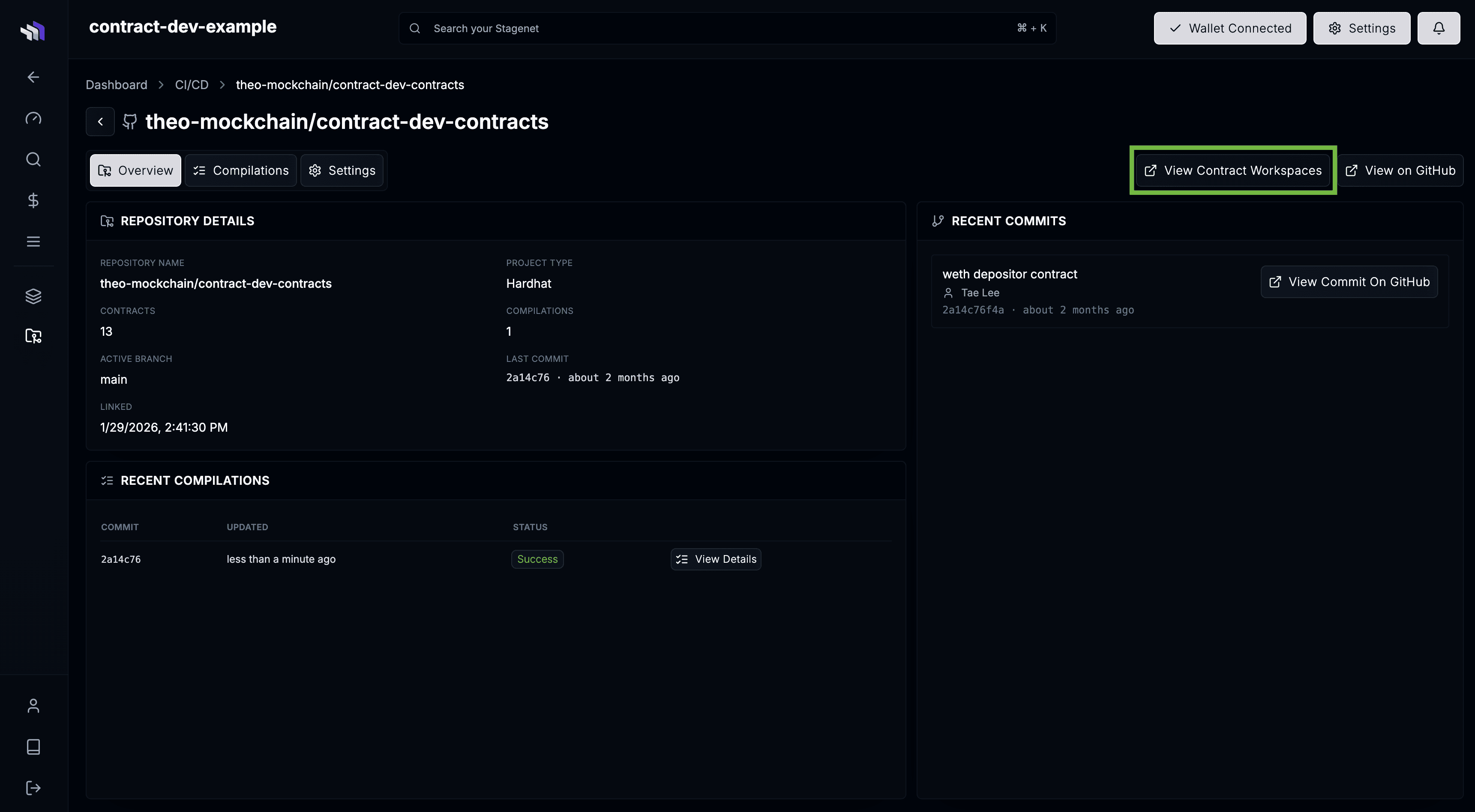
Once the build completes, your Contract Workspaces are created. Click View Contract Workspaces to see them.
Activate Workspaces
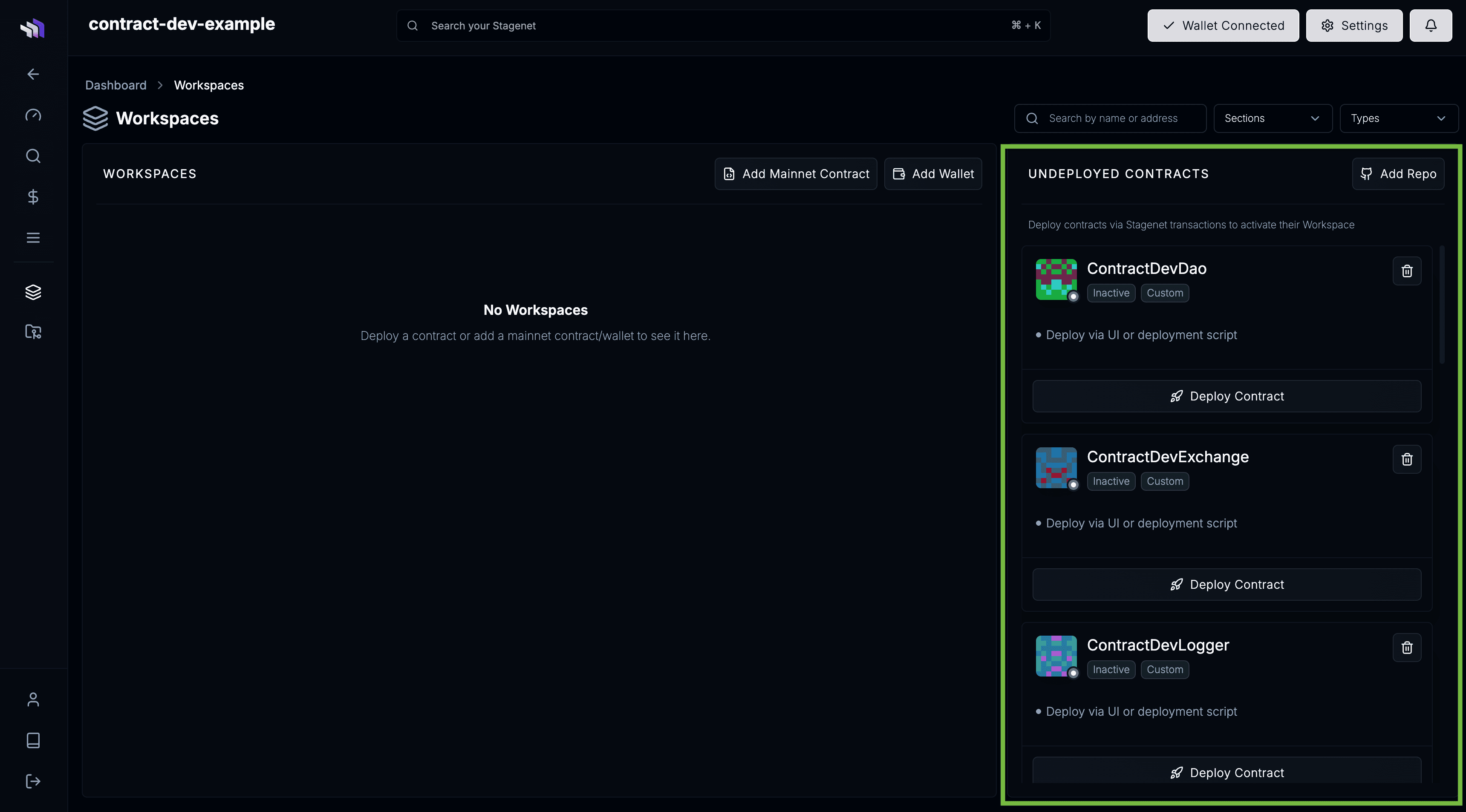
Imported Workspaces are created immediately, but they must be activated by deploying the corresponding contracts to your Stagenet. Once deployed, the Workspaces point to their live Stagenet instances and begin displaying active analytics.
You can view unactivated Workspaces on the Workspaces dashboard.
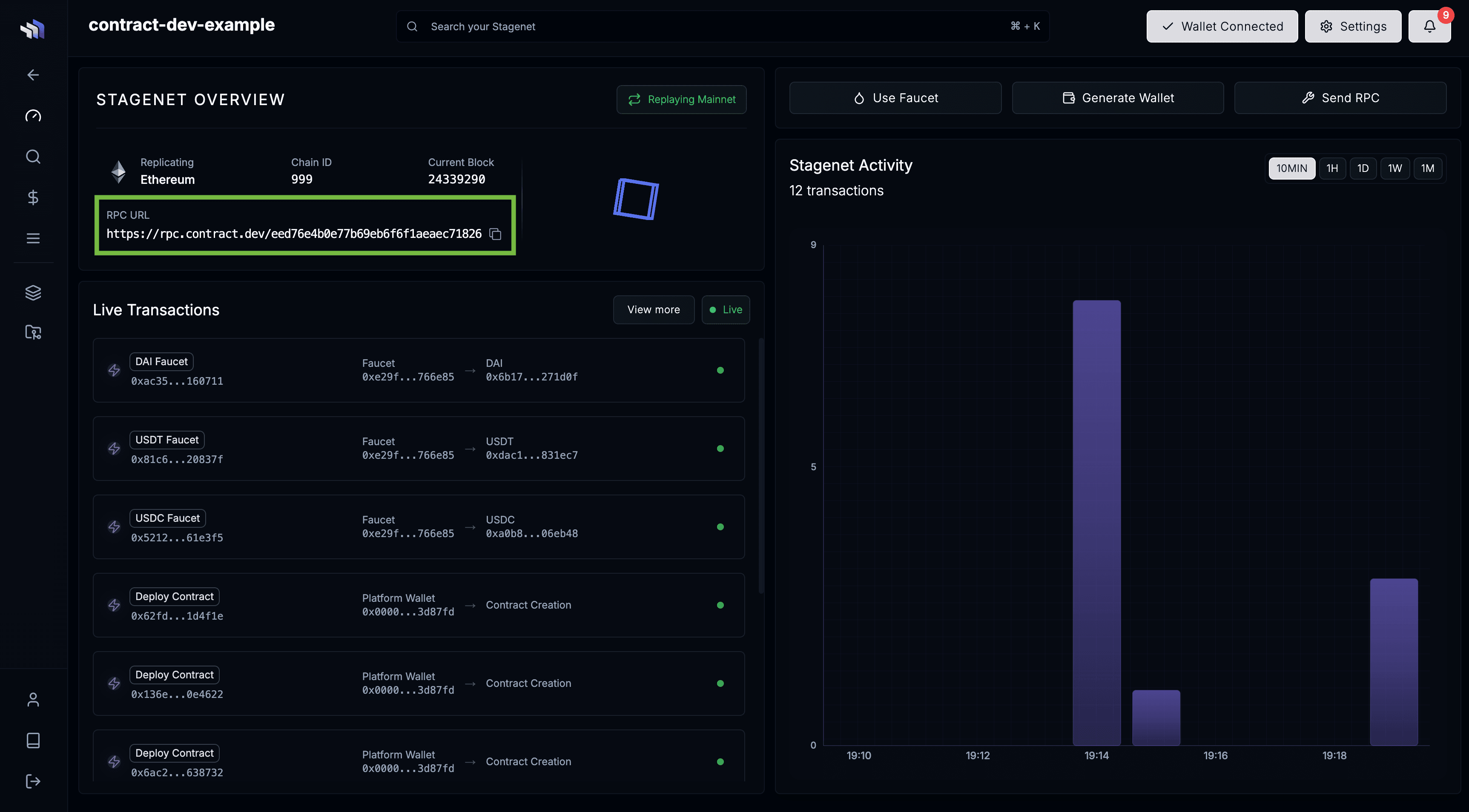
Deploy your contracts using your normal deployment scripts, pointed at the Stagenet’s RPC URL (available on your project dashboard).
If you need a funded account for deployments, use the Stagenet’s Wallet Generator under Tools → Wallet Generator.
After deployment, your Workspaces will activate.
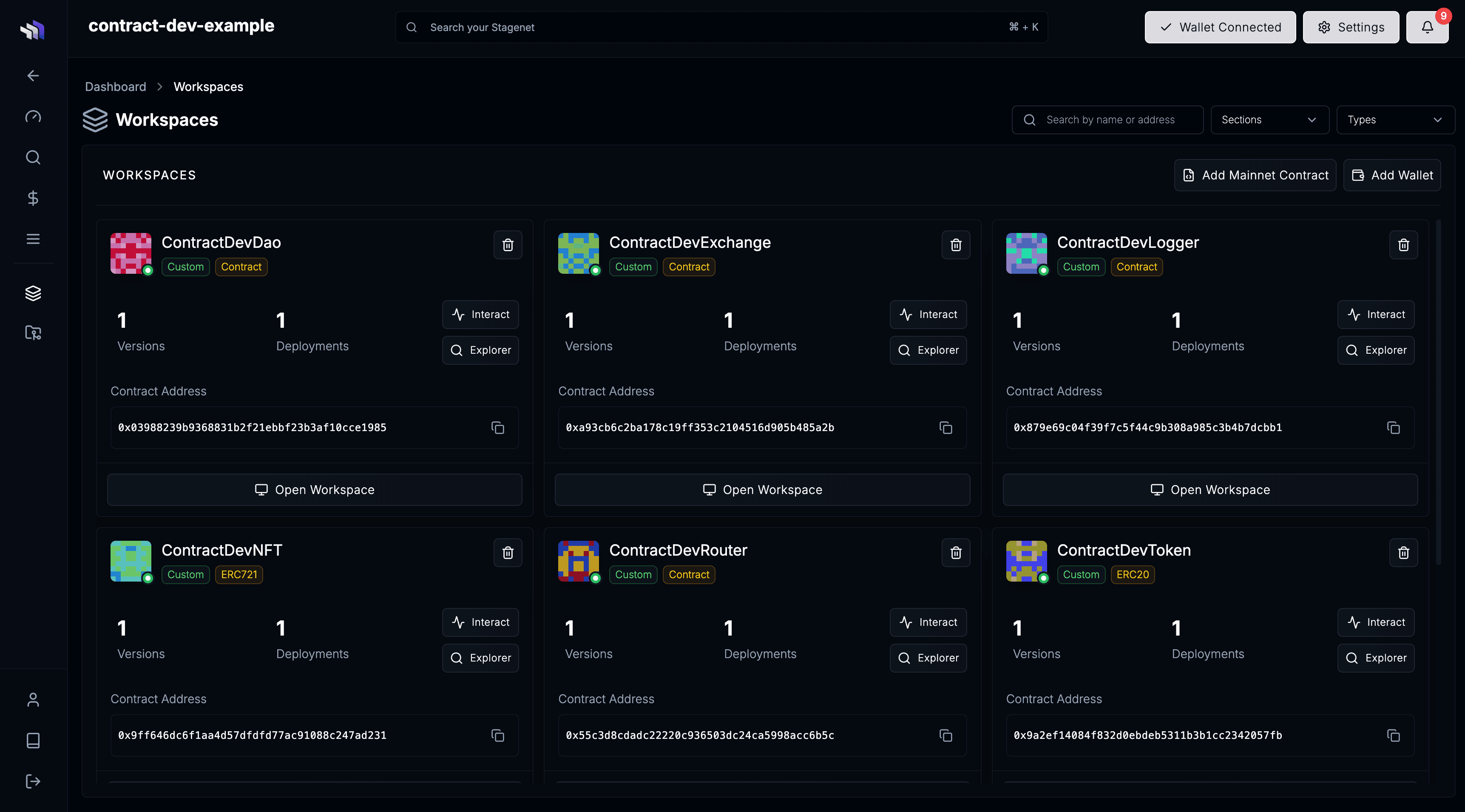
You can now use them to analyse behaviour and iterate on your contracts.