Track Contract TVL
This guide shows you how to track the Total Value Locked (TVL) of a contract on your Stagenet.
Use this to monitor the economic performance of systems such as trading bots, portfolio vaults, or any contract that holds assets.
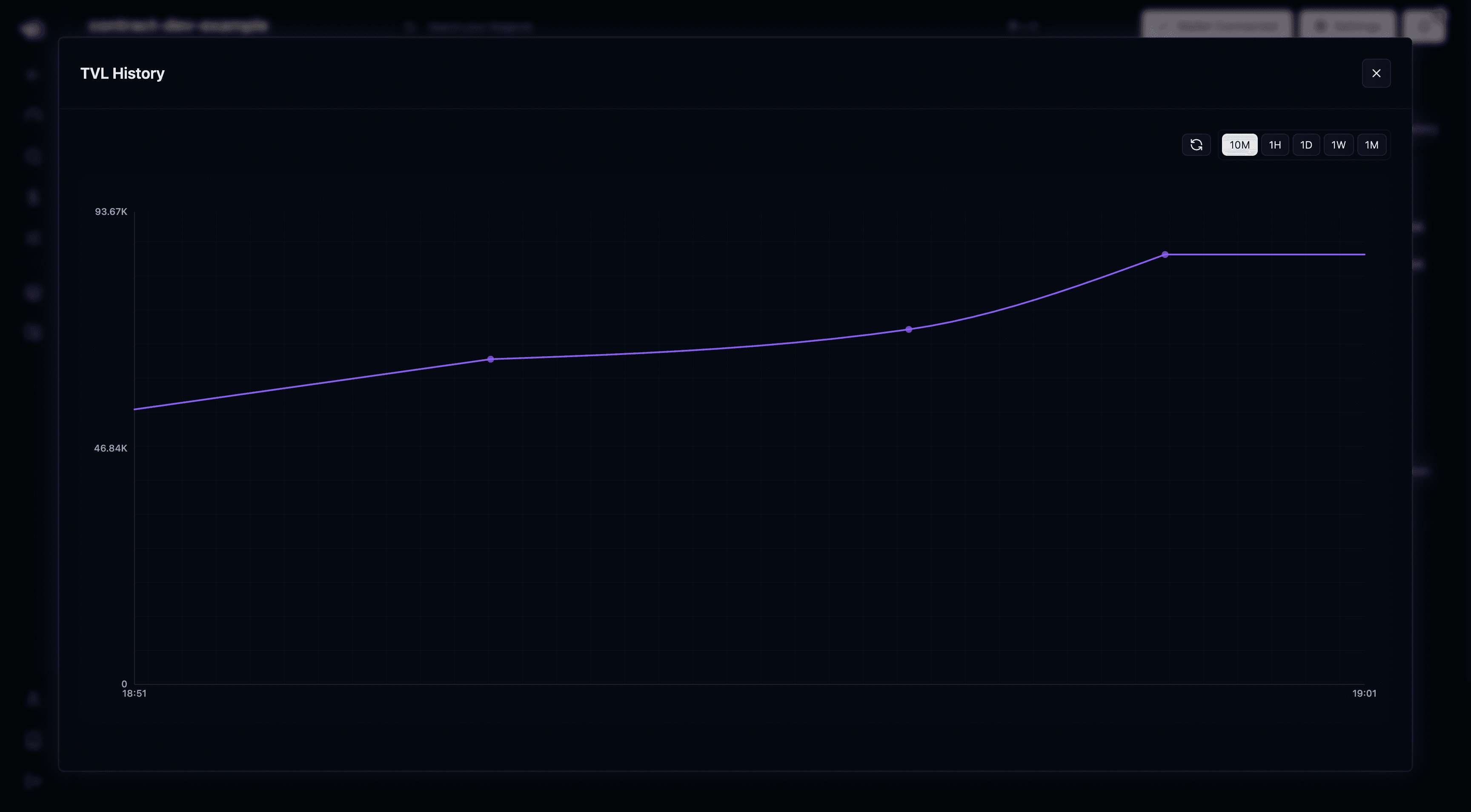
You will get a TVL chart that updates as your Stagenet runs, letting you visualise how the contract’s USD value evolves over time.
Create a Contract Workspace
Start by creating a Contract Workspace for your contract. Link the GitHub repository that contains it, then deploy the contract to your Stagenet.
This automatically provisions a dedicated Workspace for it with analytics, devtools, and block-by-block data.
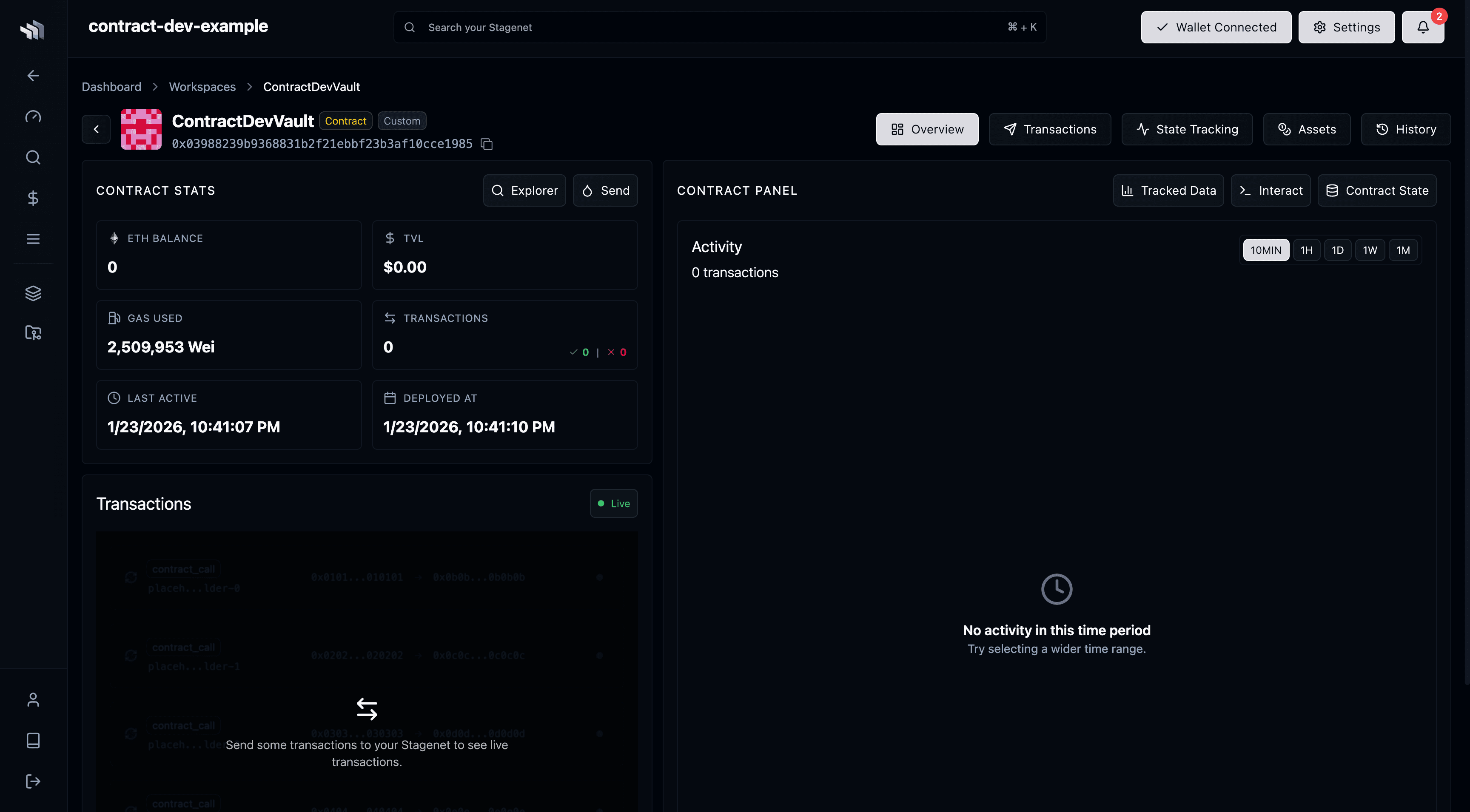
To set Workspaces up for your contracts, follow the quickstart guide for the framework you used to build them:
Configure Project Tokens
Once your Workspace is ready, open it and navigate to its Assets View.
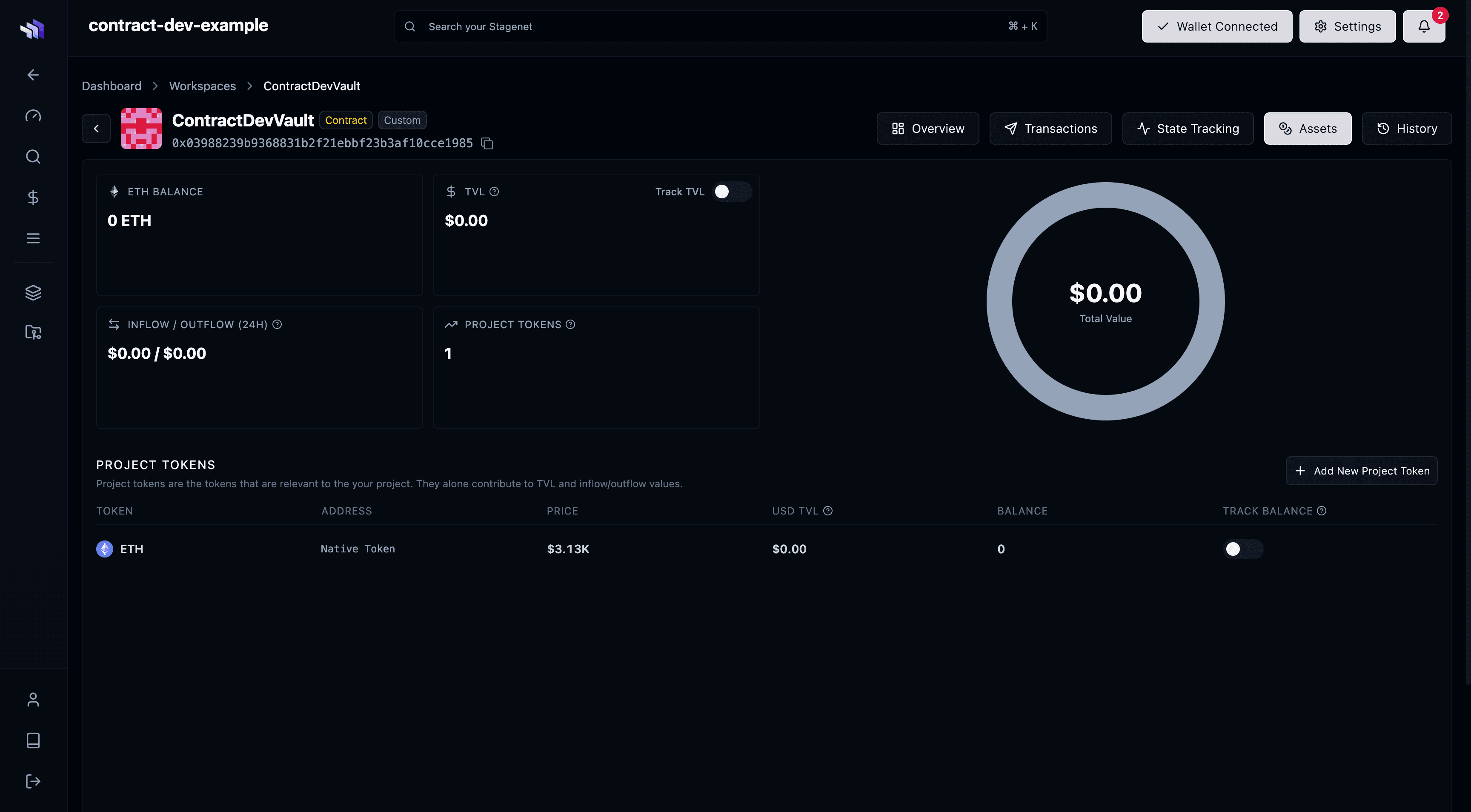
The Assets View shows the tokens held by your contract. TVL is calculated only from the tokens you define as Project Tokens — these represent the assets that are relevant to your application.
- By default, the native token of your chain is included.
- You can add any ERC-20 by clicking Add New Project Token.
For example, if your contract manages WETH and USDC, add both as Project Tokens. Once added:
- Their balances appear in the table
- Each token’s USD value is fetched from on-chain oracles
- Your Workspace can now compute and plot the contract’s token balances and overall TVL
Below is an example Workspace with WETH and USDC added:
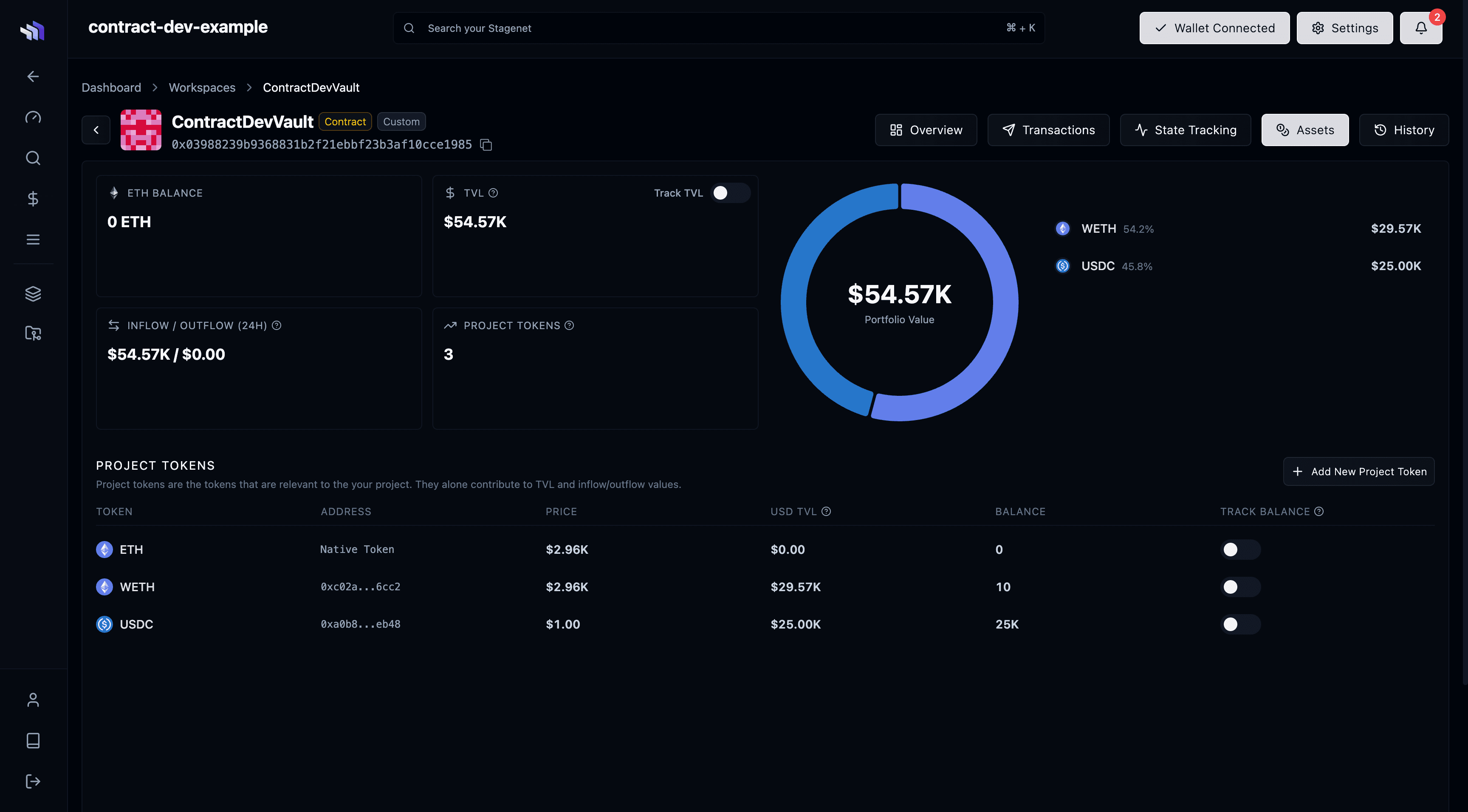
To enable TVL tracking, add all the tokens used by your contract as Project Tokens.
Turn on TVL Tracking
Use the toggle in the top-right of the TVL panel to start tracking your contract’s TVL:
Your Stagenet will begin recording its TVL from that point forward.
Click View Chart (next to the the track TVL toggle) to open the TVL graph and view how it evolves over time.